
Google Docs has no flashcard feature. There is no Insert > Flashcard, no study mode, no button anywhere that turns a document into cards. What it does have is a table tool and a printer dialog, and those two things are enough to produce a stack of real index cards in about ten minutes.
This guide does the method properly, with the actual page sizes and the actual number of cards that fit a sheet. Then it does the thing no other page on this search result does: it opens the Google Workspace Marketplace and checks what the flashcard add-ons really are, what they cost, and which Google app they actually install into. The answer to that last question is surprising enough that it changes what most people should do next.
Make flashcards in Google Docs with a table
This is the method every tutorial describes. Here it is with the numbers filled in.
Step 1. Check you are in Pages mode. Open File > Page setup. If the dialog offers you a choice between Pages and Pageless, choose Pages. This matters more than it sounds: Google's own documentation states that page size, margins and orientation "aren't available in documents that are in pageless format". In a pageless document there is no Paper size control at all, and the rest of this method has nothing to stand on. No other guide mentions this, and it is the most common reason the method appears not to work.
Step 2. Set the paper size and margins. In the same dialog, pick Letter or A4 and set all four margins to 0.5 in (12.7 mm). You can click Set as default if you expect to do this again.
Step 3. Insert a table sized to a real index card. Insert > Table. One column, and as many rows as cards fit the page, which the next section works out. Then select the rows, right-click, choose Table properties, and set the minimum row height to the card height in inches. Set the column width to the card width.
Step 4. Type the term, then the definition. One per cell. If you want the answer on the back, make a second page with the same table and type the definitions in the same order, then print double-sided and the pairs line up.
Step 5. Print and cut. File > Print, and in your printer's dialog choose the card stock setting if you have one. The table borders are your cut lines.
How many cards actually fit on a page
Index cards are sold in three standard sizes. US Letter is 8.5 x 11 in; with 0.5 in margins the printable area is 7.5 x 10 in. A4 is 210 x 297 mm, printable 184.6 x 271.6 mm at the same margins.
The three-per-sheet figure for 3 x 5 is not arithmetic we invented. Avery sells a printable index card product, template 5388, described on its own product page as "50 printable sheets, 3 cards per sheet, with a total of 150 blank 3 x 5 index cards". If you are buying pre-perforated stock, that is the layout your document has to match.
One practical note the template blogs skip: set your row height as a minimum, not as a fixed height. Google Docs will grow a row whose text does not fit, and a card that has silently become 3.4 in tall will not line up with your cutting guide or your perforations.
The add-ons: what is really in the Marketplace
Search the Google Workspace Marketplace for flashcards and you get a wall of results. Here is every flashcard add-on in it, with the numbers off each listing, all checked on 23 September 2026.
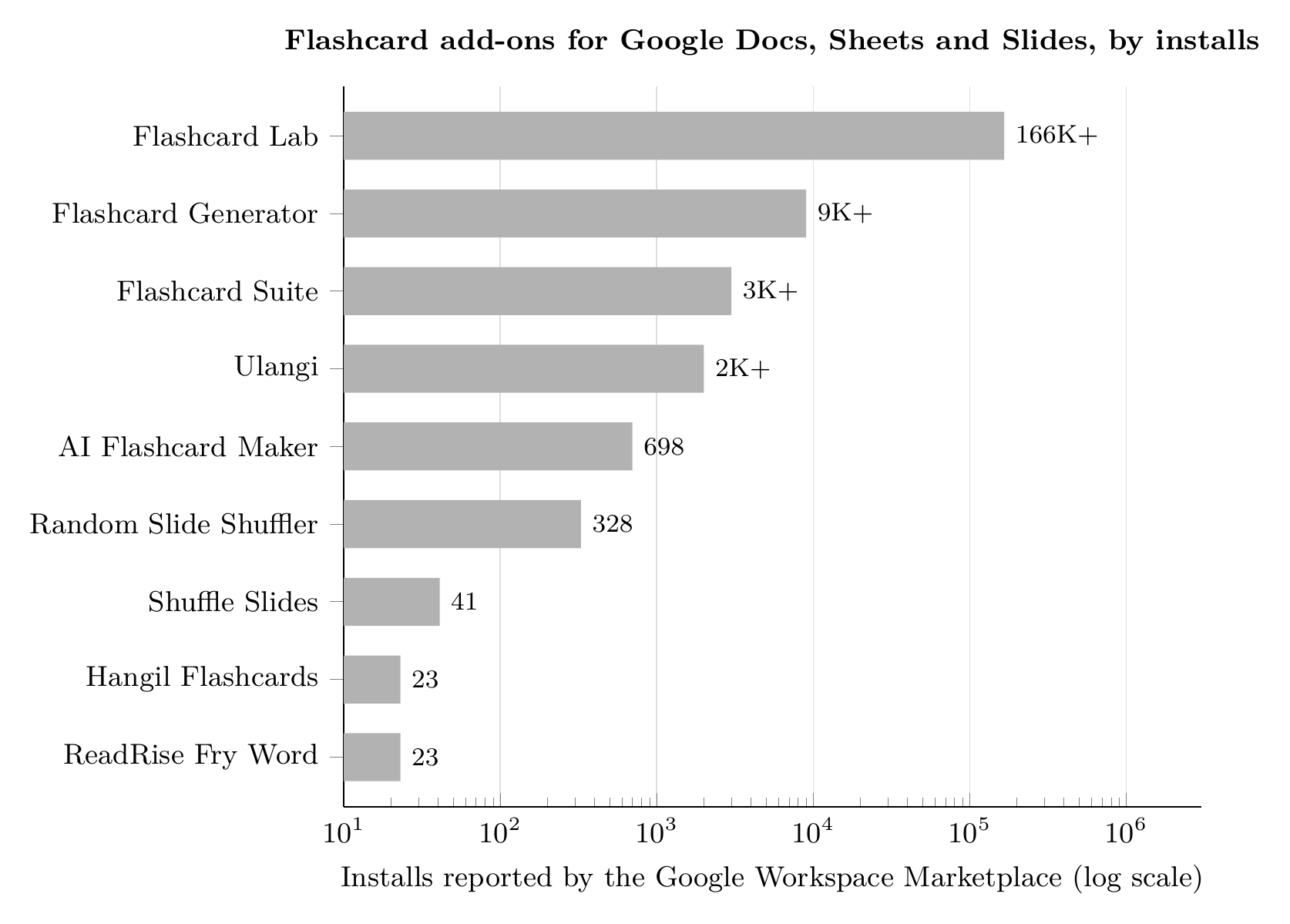
Install counts from each add-on's Google Workspace Marketplace listing, checked 23 September 2026. The scale is logarithmic because the range spans four orders of magnitude. Chart by Mindomax.
Two things in that table are worth slowing down for.
The first is the spread. This is not a choice between nine add-ons. It is a choice between one add-on and eight that almost nobody has installed. Flashcard Lab has more users than every other flashcard add-on in the Marketplace combined, several thousand times over.
The second is that the highest ratings belong to the smallest add-ons. Ulangi and Shuffle Slides both show 5.0 stars, on four reviews and two reviews. Flashcard Lab's 4.32 comes from 72. A perfect score from two people is not evidence of anything, and a table like this is the only way to see that.
The thing nobody mentions: most of them are not Docs add-ons
Every Marketplace listing has a field called "Works with", and it is the authoritative answer to which Google app an add-on actually installs into. Read that field across all nine and a pattern appears immediately.
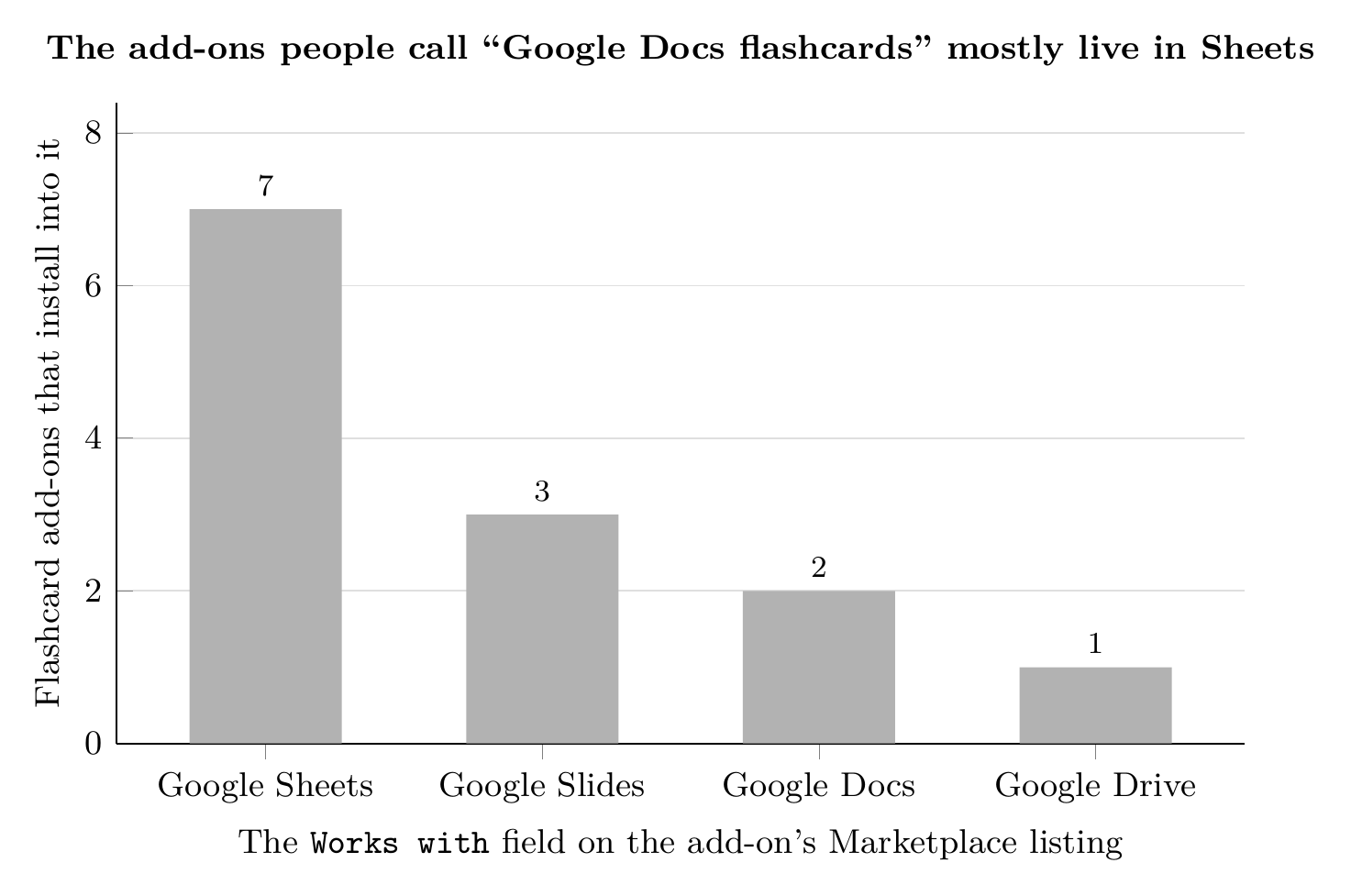
Counted from the "Works with" field of each add-on's Google Workspace Marketplace listing, checked 23 September 2026. Add-ons that attach to more than one app are counted in each. Chart by Mindomax.
Seven of the nine install into Google Sheets. Only two attach to Google Docs at all.
That includes the market leader. Flashcard Lab's own Marketplace blurb reads "Create printable flashcards with Google Sheets + Docs + AI", and its Works with field says: Google Sheets. HomeDrop, which makes Flashcard Generator, describes its own product on its site in exactly the terms that explain why: "Use data from Google Sheets to merge into a selected template in Google Docs".
That is the whole pattern. The list of cards lives in a spreadsheet, one row per card, because a spreadsheet is a database and a document is not. Docs is only the thing it prints into.
So if you came here to install a Google Docs flashcard add-on, the honest answer is that you are probably looking for a Google Sheets one. Put your terms in column A and your definitions in column B, install Flashcard Lab there, and you get study modes the Docs table method cannot give you. Type your cards into a Docs table instead, and you have a document you can print, and nothing else.
What Flashcard Lab actually costs
No article currently ranking for this search shows a single price. Here are the ones that matter, from flashcardlab.co/pricing, checked 23 September 2026.
The number to notice is in the free row: twenty cards. Not twenty decks, twenty cards, and the same cap applies to printing through Google Docs. If your vocabulary list is forty terms, the free tier will not print it. That single figure decides whether this add-on solves your problem or stops halfway through it, and it appears on no other page about Google Docs flashcards.
Flashcard Generator by HomeDrop advertises a free trial and does not publish what it costs afterwards, either on its Marketplace listing or on homedrop.io (checked 23 September 2026). Flashcard Suite, AI Flashcard Maker, ReadRise and Shuffle Slides are listed as free of charge. Google Docs, Sheets and Slides are free with any Google account.
Google Slides is the better Google tool for studying
If you are going to study on a screen rather than print, Slides beats Docs, and it is not close.
Slides has a real custom page size: File > Page setup gives you Standard 4:3, Widescreen 16:9, Widescreen 16:10, or Custom, where you type a size in inches, centimeters, points or pixels. Set it to 5 x 3 in and each slide is a card. Put the term on the slide and the answer in the speaker notes, then use Presenter view: you see the note, your audience, or the front of your own screen, sees only the term. That is genuine self-testing, which a Docs table cannot do at all.
What Slides will not do is shuffle. Google's documentation for presenting covers full-screen Slideshow, Presenter view, speaker notes, arrow-key navigation and auto-advance, and nothing else. The order is the order you built. The clearest evidence that this is a real gap is that two separate add-ons exist purely to fill it, Shuffle Slides and Random Slide Shuffler, and between them they have 369 installs.
Where the Google Docs method actually stops
This is the part a tutorial written to sell you a template leaves out. The table method is genuinely good at exactly one thing, producing neat printed cards, and it is not merely weak at the rest. It has no capability there at all.
There is no shuffle. Your cards stay in the order you typed them, which is the order you learned them in. You will remember card 12 because it follows card 11, not because you know it.
There is no scheduling. Nothing in Google Docs records when you last saw a card or when you should see it again. That scheduling is the single best-evidenced thing in study research, and in this ecosystem it exists only as a paid feature of a third-party add-on. If you want to understand why it matters before you decide, we have written about how spaced repetition works separately.
There is no self-testing. A Docs table shows the term and the definition side by side. Reading both is recognition, not recall, and the gap between the two is most of the reason flashcards work at all. See are flashcards really active recall.
There is no way to mark a card wrong. You cannot tell your document that card 7 keeps catching you out, so every review costs the same time as the last one, forever. Flashcard Lab sells a "Forgotten" set as a paid feature precisely because Docs has no concept of one.
Phone study means printing or scrolling. The Docs mobile app renders the same table. There is no card view.
None of that makes the method wrong. If you want physical cards to spread across a desk, Google Docs is a perfectly good free way to print them, and paper has advantages a screen does not. We compared them in paper versus digital flashcards.
If you want to study rather than print
Once you have decided you want scheduling, shuffling and testing, you have left what Google Docs can do and you are choosing an app. Three worth knowing, with prices checked on 23 September 2026.
Anki, if you will spend a week learning it
Anki is free on desktop and on Android, and $24.99 once on iOS (App Store, 4.0 stars from 2.3K ratings, checked 23 September 2026). It has the most respected scheduler in the category and an interface that will fight you for a week. If you are willing to spend that week, nothing else is more powerful. If you are not, you will abandon it, and most people do.
Mindomax, if typing the cards is the bottleneck
Mindomax generates cards from a PDF, an image, text or audio rather than making you type them, which is the real bottleneck once you have decided to study digitally. That is what our card generation does. It schedules reviews and works on phone and desktop. The honest limitation: it is a cloud app, so an unreliable connection is a worse experience than a local Anki deck, and if you specifically want printed index cards it is the wrong tool, because the Docs table above is better. The free plan is $0 forever and the premium plan is currently $0 as well, listed as free until 2028 (checked 23 September 2026).
Quizlet, if you want ready-made sets
Quizlet is the one most students already have. Quizlet Plus is US$2.99 a month billed at US$35.99 a year, and Quizlet Plus Unlimited is US$3.75 a month billed at US$44.99 a year (checked 23 September 2026). Its library of ready-made sets is unmatched; its free tier has grown steadily smaller. If you would rather not pay anything at all, we keep a current list of flashcard apps with genuinely free tiers.
The short version
Use Google Docs when you want printed index cards and nothing more. Set File > Page setup to Pages first or nothing else will work, use a one-column table at 5 x 3 in, and expect three cards to a Letter sheet.
Use Google Slides when you want to study on a screen for free: custom slide size, answer in the speaker notes, Presenter view. Accept that there is no shuffle.
If you are reaching for an add-on, look in Google Sheets, not Google Docs. That is where seven of the nine live, including the only one with a serious number of users. And check the free tier's card cap before you build a deck on top of it.
And if what you actually want is a system that decides what to show you and when, no configuration of Google Docs will get you there. That was never what it was for.
The same method, in other tools: flashcards in OneNote and flashcards in Notion. And if you are weighing the format itself, digital flashcards covers what changes when cards leave paper.
Frequently Asked Questions
Does Google Docs have a flashcard feature?
No. There is no built-in flashcard tool, study mode or template category for cards. What people mean by "Google Docs flashcards" is a table sized to an index card, printed and cut. Everything beyond printing comes from an add-on or from a separate app.
What size should a flashcard table be in Google Docs?
Match a real index card: 3 x 5 in, 4 x 6 in or 5 x 8 in. At 0.5 in margins on US Letter you fit three 3 x 5 cards per sheet, two 4 x 6 cards, or one 5 x 8 in landscape. Set the row height as a minimum rather than a fixed value so long text does not silently stretch a card.
Why can't I change the page size in my Google Doc?
The document is in Pageless format. Google's documentation states that page size, margins and orientation are unavailable in pageless documents. Open File > Page setup and switch to Pages, and the Paper size control appears.
What is the best Google Docs flashcard add-on?
Flashcard Lab, by a wide margin on usage, with 166K+ installs and 4.32 stars from 72 reviews (checked 23 September 2026). One caveat its listing does not lead with: it installs into Google Sheets, not Google Docs. Seven of the nine flashcard add-ons in the Marketplace do.
Is Flashcard Lab free?
There is a free tier, capped at reviewing 20 cards per deck and printing 20 cards through Google Docs. Elite is $19.99 as a one-time lifetime purchase and Scholar is $3.99 a month billed yearly (checked 23 September 2026).
Can I study flashcards on my phone from Google Docs?
Only by reading the same table in the Docs mobile app. There is no card view, no hiding the answer and no shuffle. If phone study is the point, Google Slides in Presenter view is better, and a dedicated flashcard app is better still.
Google Docs or Google Slides for flashcards?
Docs to print, Slides to study. Docs prints cleanly to index-card stock and can do nothing else. Slides takes a custom 5 x 3 in page size and hides the answer in the speaker notes, which is real self-testing, but it has no shuffle without an add-on.


