INTRODUCTION
You recorded a 30-minute lecture. Now what? Most students never touch that audio file again. Research on the forgetting curve shows that people forget 50 to 70 percent of new information within 24 hours without reinforcement. Making flashcards from audio used to mean hours of pausing, typing, and formatting. Not anymore. This guide walks through every step of creating flashcards from audio files using Mindomax — from signing up to reviewing cards with spaced repetition. No fluff. Just the process, with screenshots for both mobile and desktop.
Why Flashcards from Audio Work Better Than You Think
Before jumping into the steps, it helps to understand why this method actually works. The production effect, studied by MacLeod and Bodner (2017) in Current Directions in Psychological Science, shows that information you hear or say aloud sticks better than text you read silently. Recognition memory improves by 10 to 20 percent when audio encoding is involved.
But passive listening alone is not enough. The real power shows up when you combine audio input with active recall. That means testing yourself instead of rereading notes. Dunlosky et al. (2013) ranked practice testing as one of the two highest-utility learning strategies in their landmark review. When you create flashcards from audio and then quiz yourself on them, you activate both the production effect and retrieval practice at the same time. That is a strong combination.
Add spaced repetition to the mix — reviewing cards at increasing intervals instead of cramming — and retention improves even further. Kang (2016) confirmed in Policy Insights from the Behavioral and Brain Sciences that spaced practice produces better long-term learning than massed study sessions. This is exactly what happens when you generate flashcards from audio and study them through an algorithm that schedules reviews automatically.
What You Need Before You Start
The requirements are minimal. You need a smartphone (Android or iOS) or a computer with a web browser. You need an audio file — this can be an MP3 or WAV recording of a lecture, a podcast episode, a voice memo, or any spoken content you want to study. If you do not have a pre-recorded file, you can also record directly inside the app. A stable internet connection is needed because the AI processes audio on the server side.
That is it. No special software. No plugins. No spreadsheets. Just an audio file and a few minutes. The audio to flashcard process is designed to be as simple as possible so the focus stays on studying, not on setup.
Step 1 — Sign Up
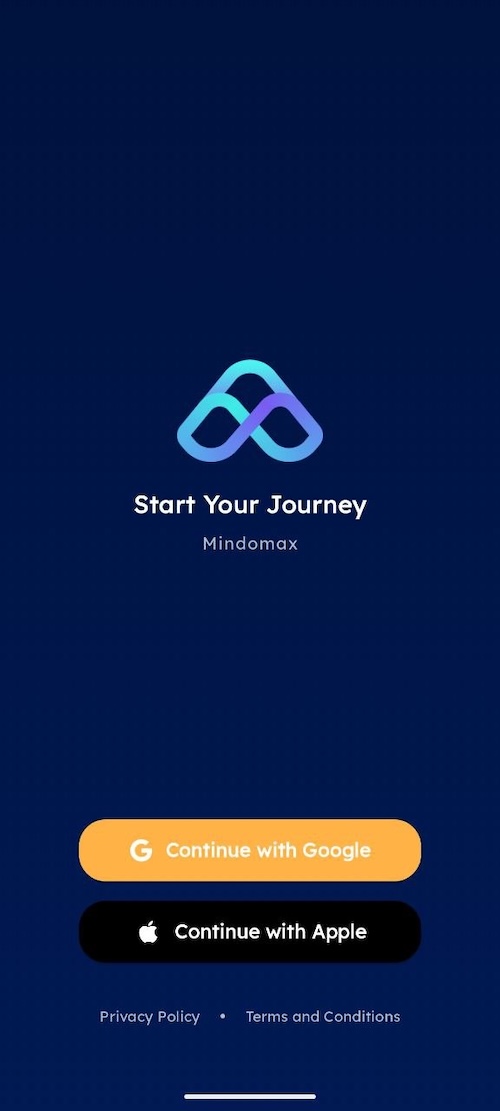
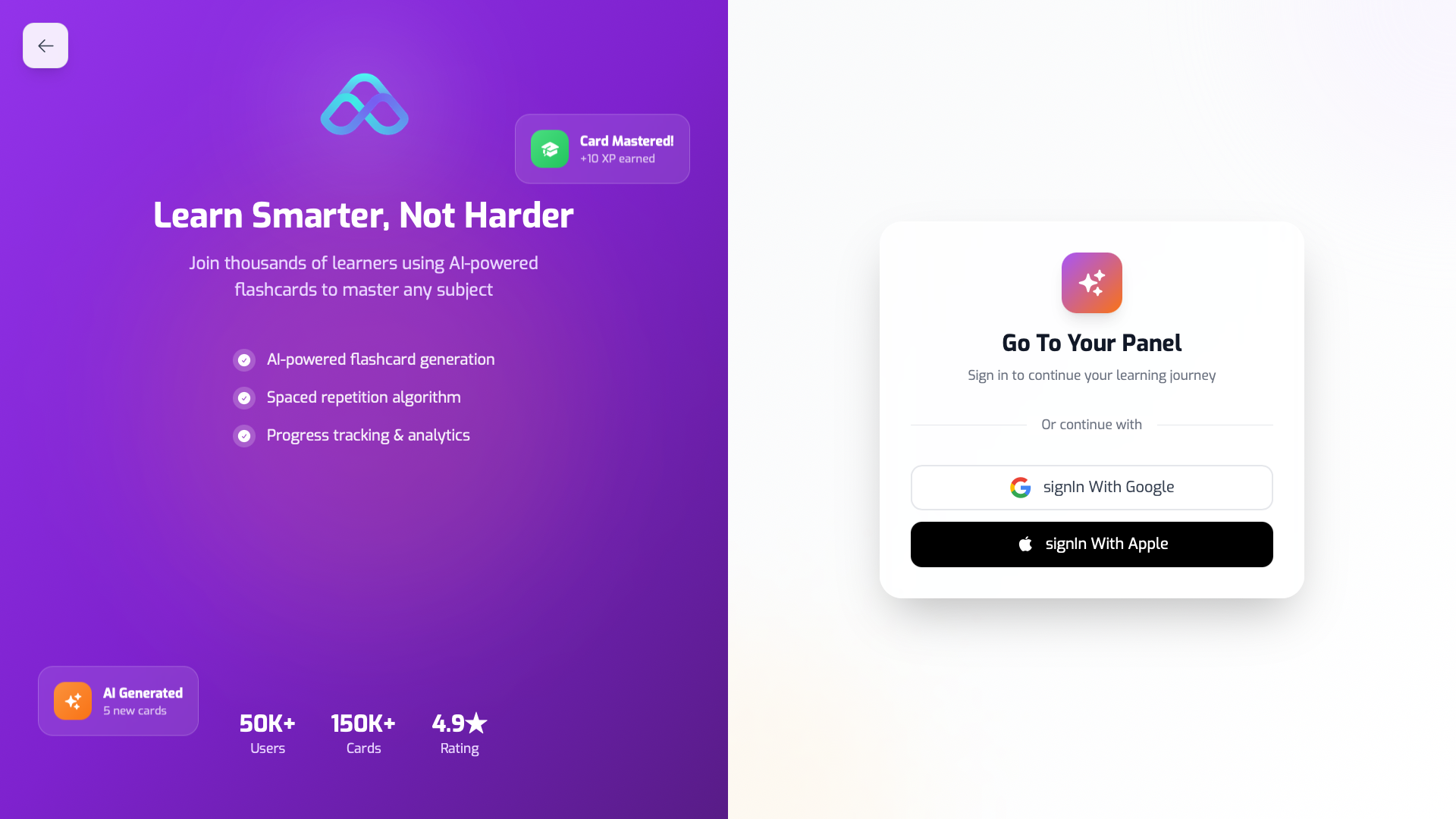
Download Mindomax from the App Store or Google Play. You can also use the web version at Mindomax. Creating an account takes about 30 seconds. The free plan includes one deck with unlimited cards and 3 AI requests per day, which is enough to test the audio-to-flashcard feature before deciding if you need more.
Or on Desktop:
Step 2 — Create Your First Deck
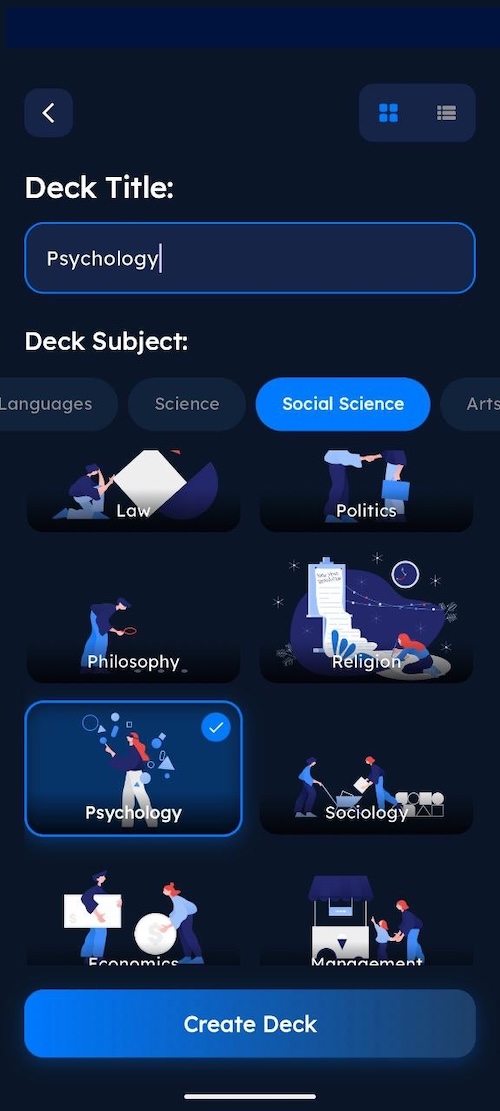
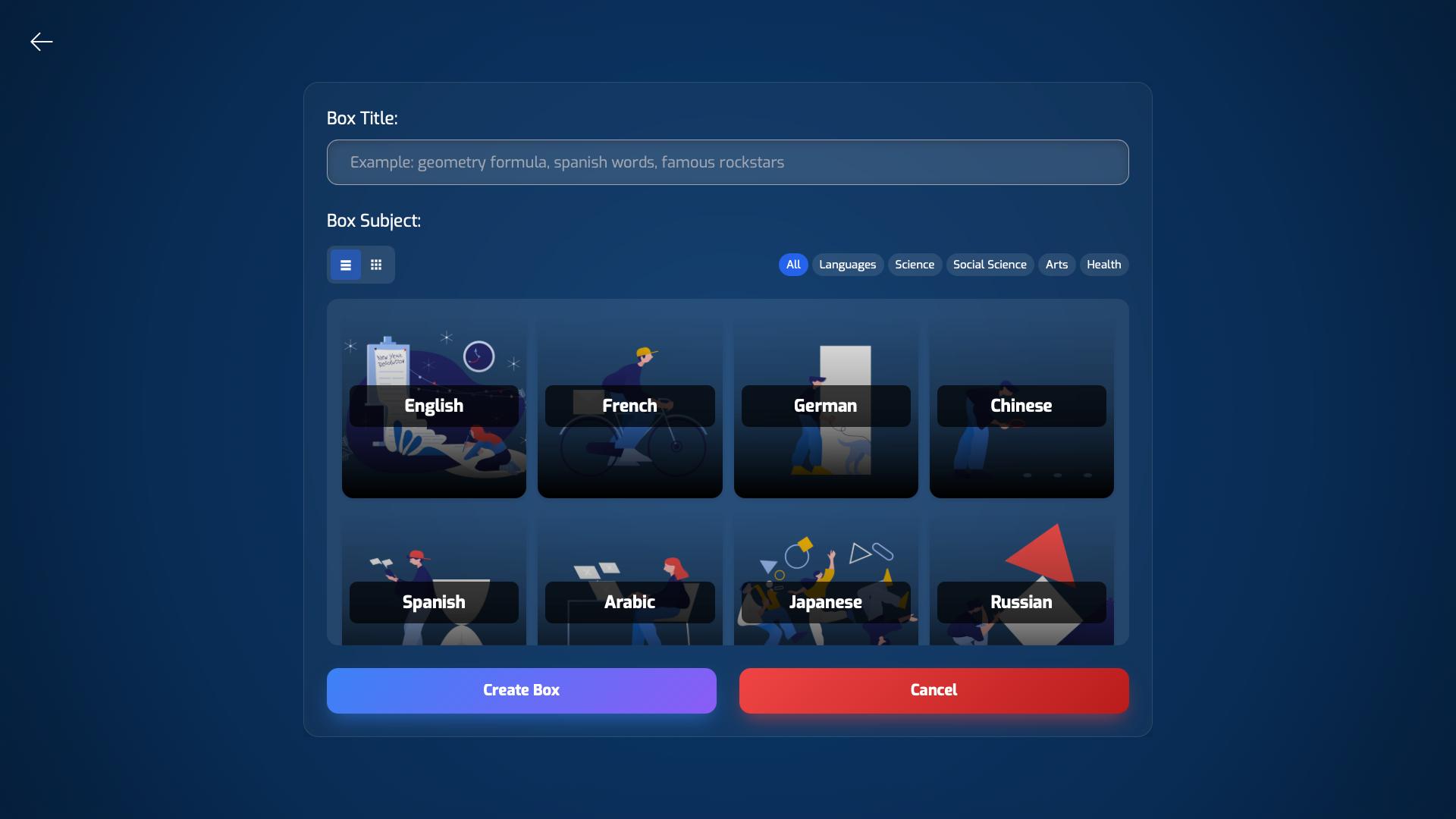
After signing in, tap the button to create a new deck. Give it a clear name that matches your subject — something like "Biology Lecture 12" or "Spanish Podcast Episode 5." Keeping deck names specific helps when you have dozens of them later. Each deck acts as a container for all the flashcards related to that topic.
Desktop:
Step 3 — Tap Add Card
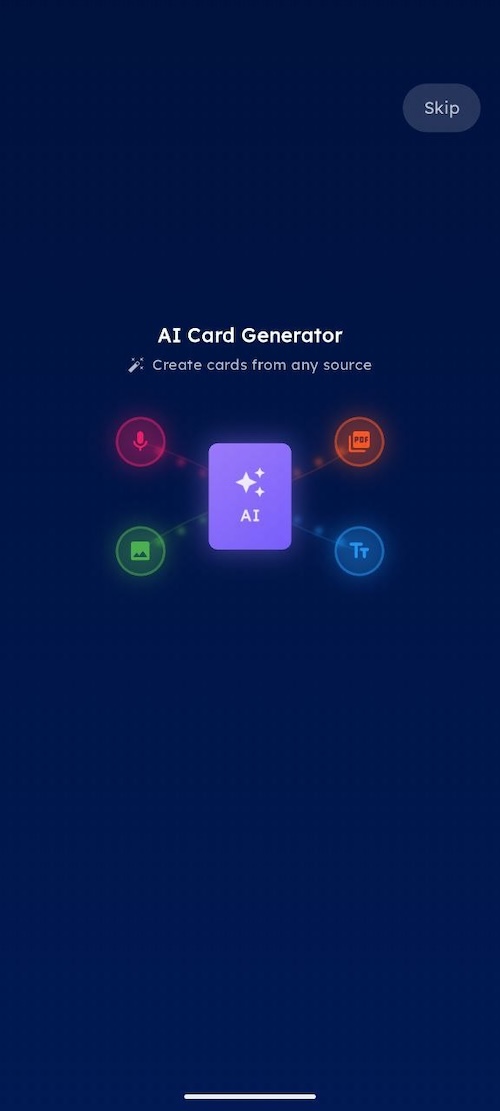
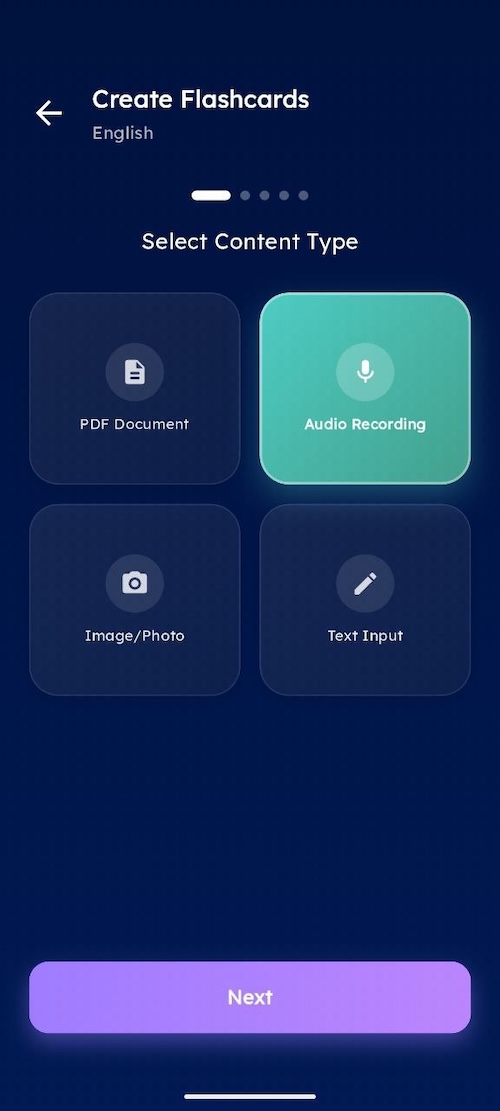
Open the deck you just created and tap the Add Card button and then Select Generate From File. This is where the process of making flashcards from audio begins. The app gives you several input options: text, image, PDF, and audio. For this guide, choose the audio option.
Step 4 — Record Your Voice or Upload an Audio File
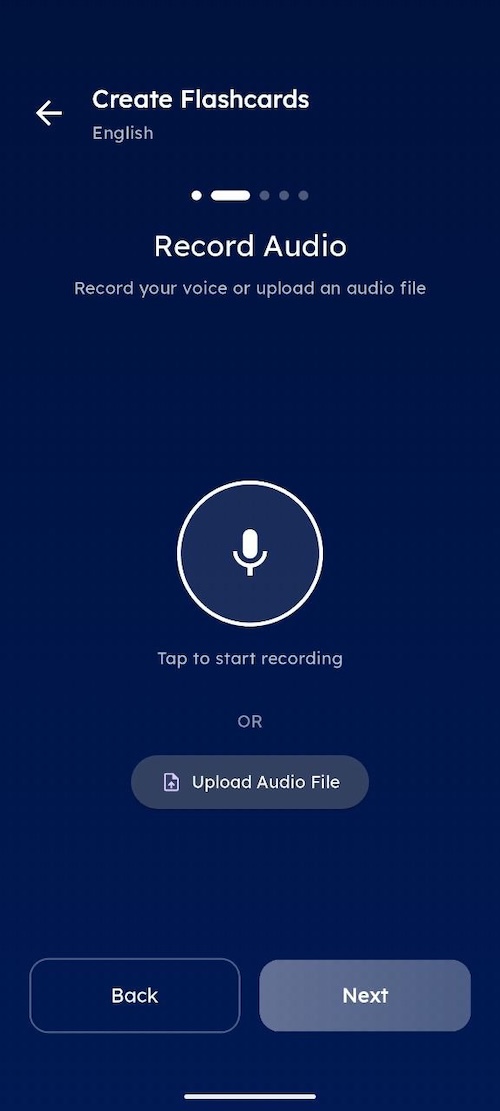
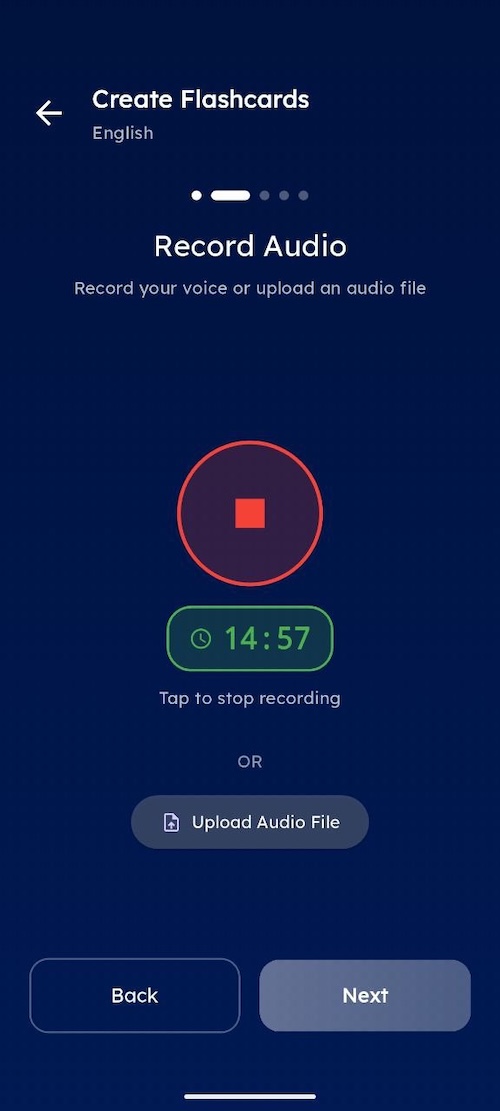
Here you have two choices. You can tap the microphone icon to record your voice directly — useful if you want to dictate notes or summarize a concept in your own words right after class. Or you can upload a pre-recorded audio file, like an MP3 of a full lecture. Both methods work for generating flashcards from audio.
If you upload a lecture recording, the AI will transcribe the speech and then extract the most important concepts to build question-and-answer cards. If you record your own voice, the same thing happens — the AI listens to what you say and turns it into structured flashcards. The speech to flashcard process takes anywhere from a few seconds for short recordings to a couple of minutes for longer audio files.
Step 5 — Confirm and Wait
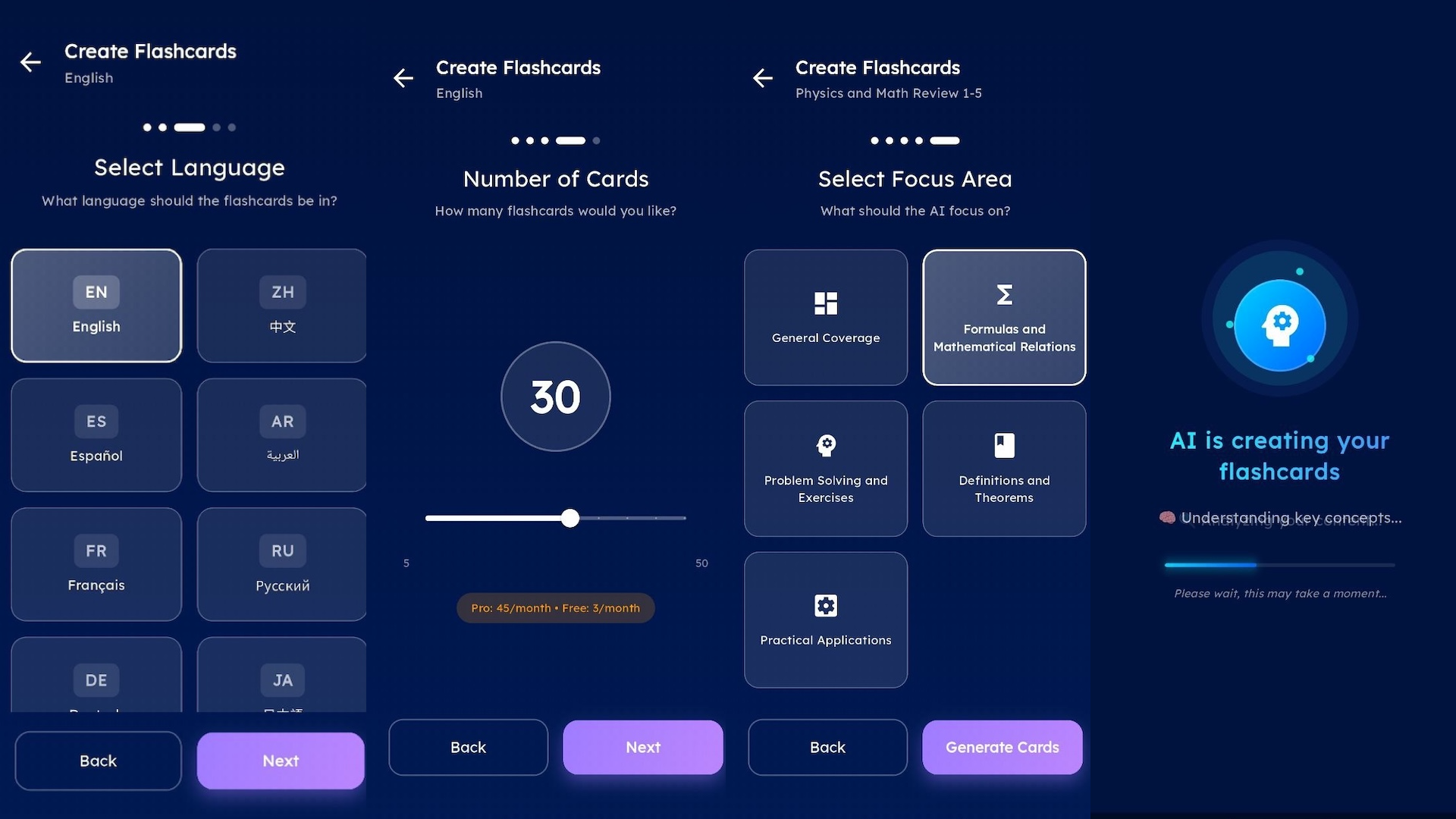
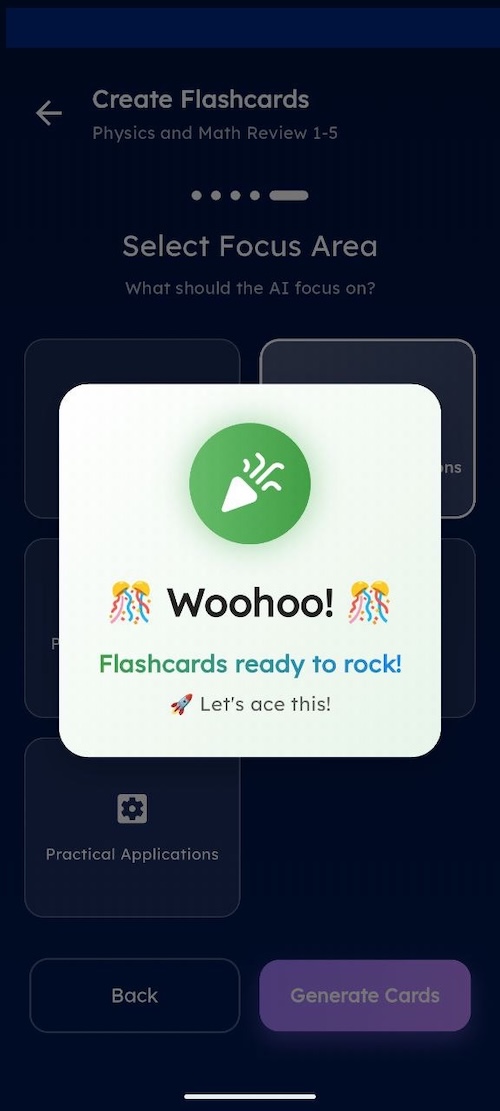
After recording or uploading, a settings screen appears before the AI starts generating cards. Here you can choose the language of the audio — useful if your lecture is in German but you want cards in English, or if you are studying a foreign language and want cards in the original language. You can also set how many flashcards you want the AI to create. A short voice memo might only need 10 cards. A full lecture might call for 40 or 50.
Then there is the focus option. This is where things get interesting. The app asks what kind of cards you want, and the choices change depending on your subject. If you are studying a language, you can tell the AI to focus on phrase translation, pronunciation practice, or grammar rules. If your audio is a psychology lecture, the focus options shift to things like key definitions, theories, or research findings. The AI adjusts the style of questions and answers based on what you pick. So two people can upload the same lecture recording and get completely different flashcard sets — one focused on vocabulary and the other focused on concepts.
Step 6 — Review Your Cards and Start Studying
Once the AI finishes, your flashcards appear inside the deck. Each card has a question on the front and an answer on the back. You can scroll through them, edit any card that needs adjusting, delete cards that are not relevant, or add new ones manually.
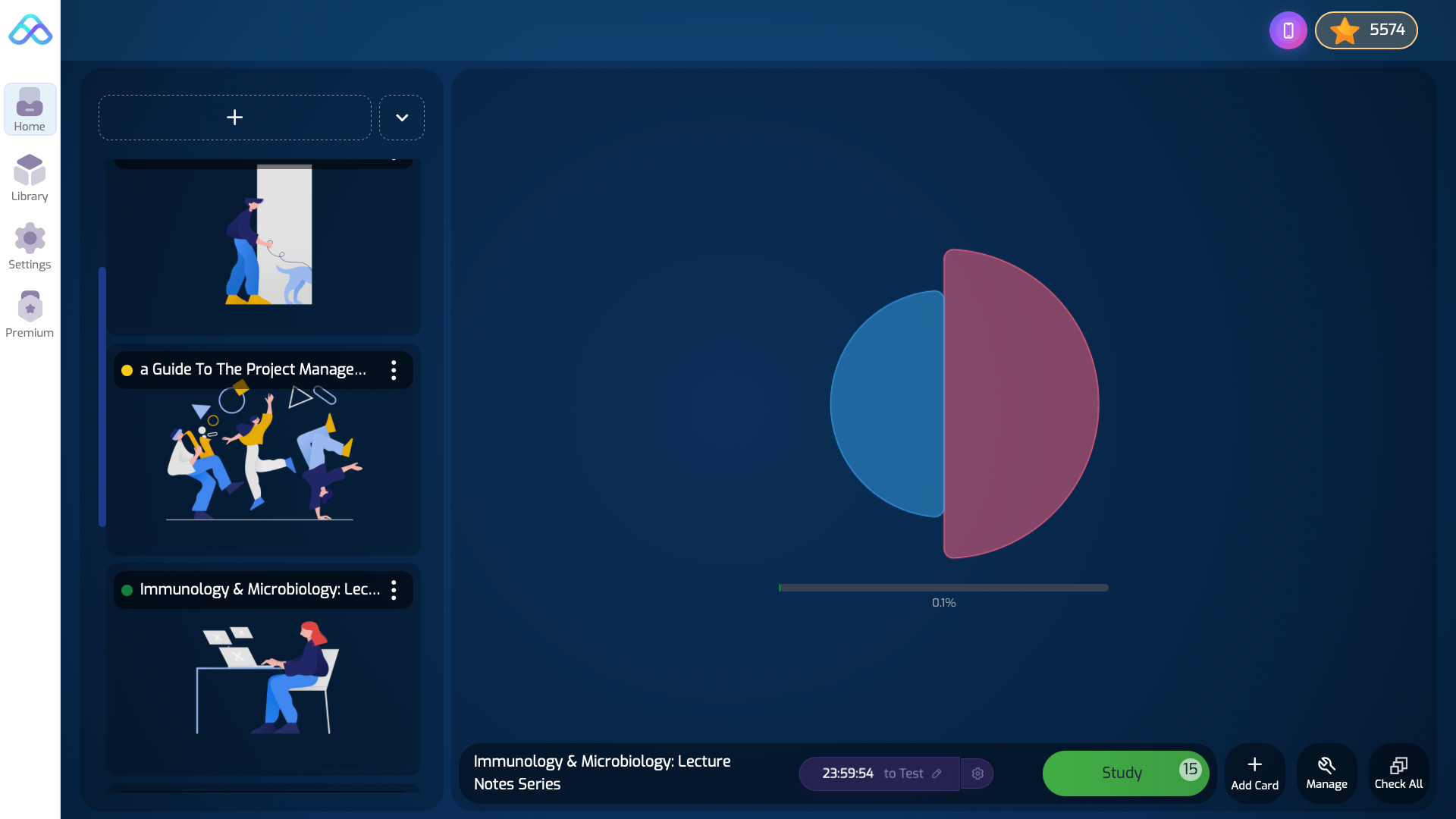
At the bottom of the study screen, a countdown timer shows how much time remains until your next scheduled review session. This is the spaced repetition system working in the background. Tap "Start Review" to begin your first study session.
What Happens After Your First Review
This is where the system gets smart. After each review session, the app gives you a performance report. Cards you answered correctly move forward to a future review date — maybe tomorrow, maybe in four days, maybe in two weeks. The spacing increases as you prove you know the material. Cards you got wrong come back immediately for more practice.
Here is something worth knowing about how the system manages larger decks. If you generate a big set of audio-based flashcards — say 80 cards from a long lecture — the app does not throw all of them at you at once. It keeps 15 cards in the active review queue and stores the rest in an archive. After each review session, new cards move from the archive into the active queue automatically. This prevents overwhelm and keeps study sessions focused. For this feature you need to reset the Deck after generating the cards.
If you ever need to reset the deck and start fresh, you can do that through the Web Version. The reset option clears all progress and brings every card back to the first position. This is useful if you want to re-study everything before a final exam or if your understanding of the material has changed significantly since you first created the cards.
Tips for Getting Better Results from Audio to Flashcard Conversion
Audio quality matters. A clear recording in a quiet room produces much better flashcards than a noisy lecture hall recording with echoes. If you are recording a live lecture, try to sit near the front and use your phone's voice memo app at a reasonable distance from the speaker.
Shorter recordings tend to produce more focused flashcards. Instead of uploading a full two-hour lecture as one file, consider breaking it into 15 or 20 minute segments by topic. This gives the AI clearer context and produces more targeted cards.
After the AI generates cards, always review them before studying. No speech to flashcard system is perfect. Sometimes a card might miss the point or phrase a question in a confusing way. Spending five minutes editing the generated cards can save you from studying incorrect material later. Think of it as quality control — the AI does 90 percent of the work, but that last 10 percent of human review makes a real difference.
CONCLUSION
Creating flashcards from audio is one of the fastest ways to turn passive lecture recordings into active study material. The science supports this workflow — combining the production effect, retrieval practice, and spaced repetition addresses three major pillars of effective learning in one process. Whether you are a medical student facing hundreds of terms per week, a language learner practicing vocabulary from native speaker recordings, or a professional studying for a certification exam, converting audio into structured flashcards saves hours of manual work and builds stronger long-term memory.
The six steps above take less than five minutes to complete. The studying that follows is what actually changes your results.
Frequently Asked Questions
How long does it take to convert an audio file into flashcards?
Most recordings under 30 minutes are processed within one to two minutes. Longer files may take slightly more time depending on audio clarity and server load. The AI handles transcription and card generation automatically.
What audio formats are supported for flashcard creation?
Common formats like MP3 and WAV work without issues. Most voice memo formats from smartphones are also supported. If your file does not upload, try converting it to MP3 using a free online converter.
Can I create flashcards from audio in languages other than English?
Yes. The speech recognition system supports multiple languages. Pronunciation features are available in 14 languages, which means generated cards can include audio playback for language learning purposes.
Is there a limit to how many flashcards the AI can generate from one audio file?
There is no hard cap on the number of cards per file. However, longer recordings naturally produce more cards. The free plan allows 3 AI requests per day, while the Premium plan offers 45 daily requests for heavier use.
Do I need to be online to study flashcards after they are generated?
The cards sync across devices through the cloud, so your progress stays up to date on every platform. You can still access and review your cards offline — the app stores them locally on your device. But syncing your spaced repetition schedule and study progress across platforms requires an internet connection.